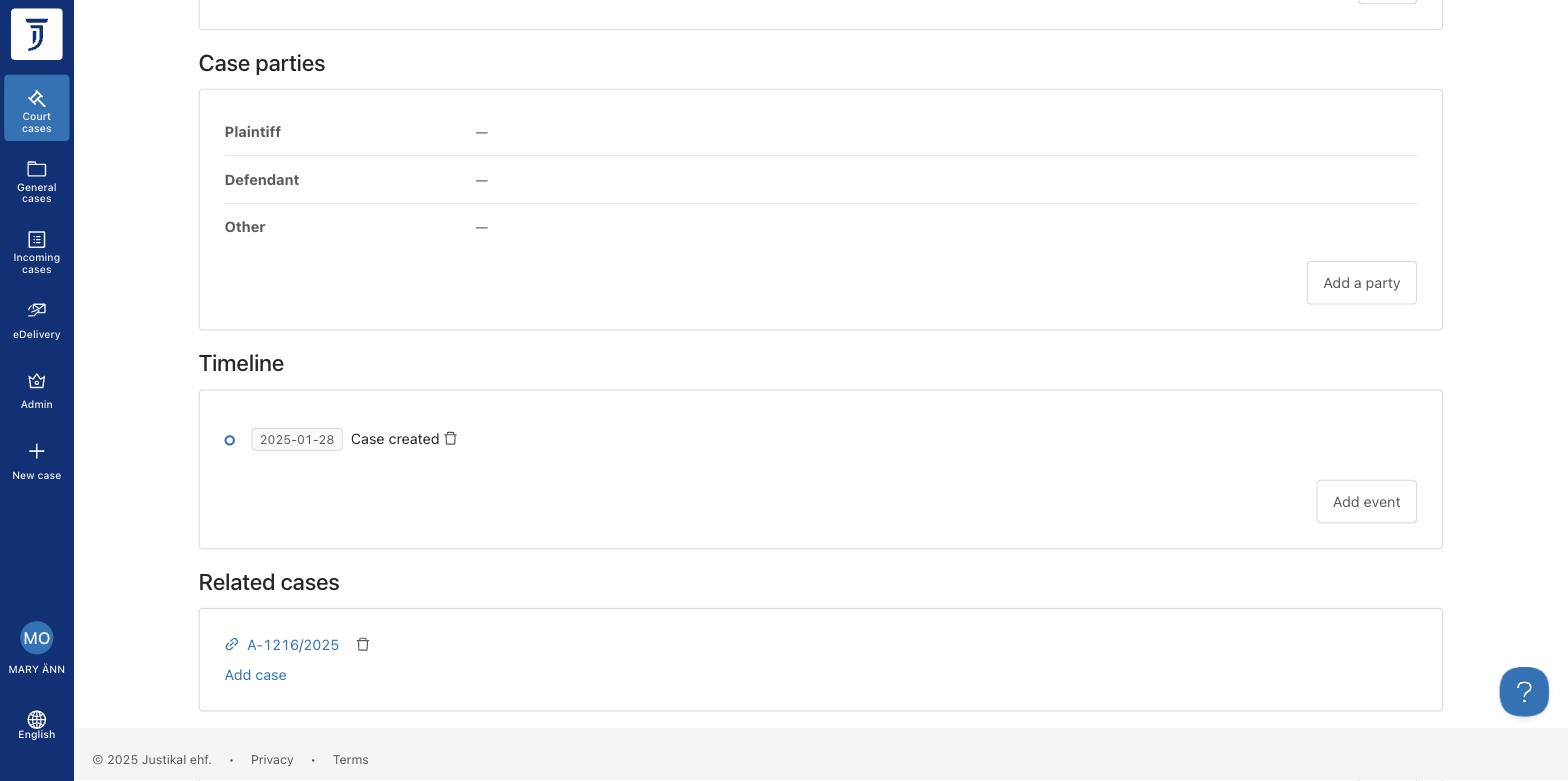
Case overview
The following instructions help you understand the case overview page in Justikal and how to navigate it.
- After logging in to Justikal, click on a case from the "Court cases" or "General cases" list to open it.


- The case opens on the "Case overview" tab. At the top you will see four navigation tabs: "Case overview", "Documents", "Case access", and "Audit log".
-
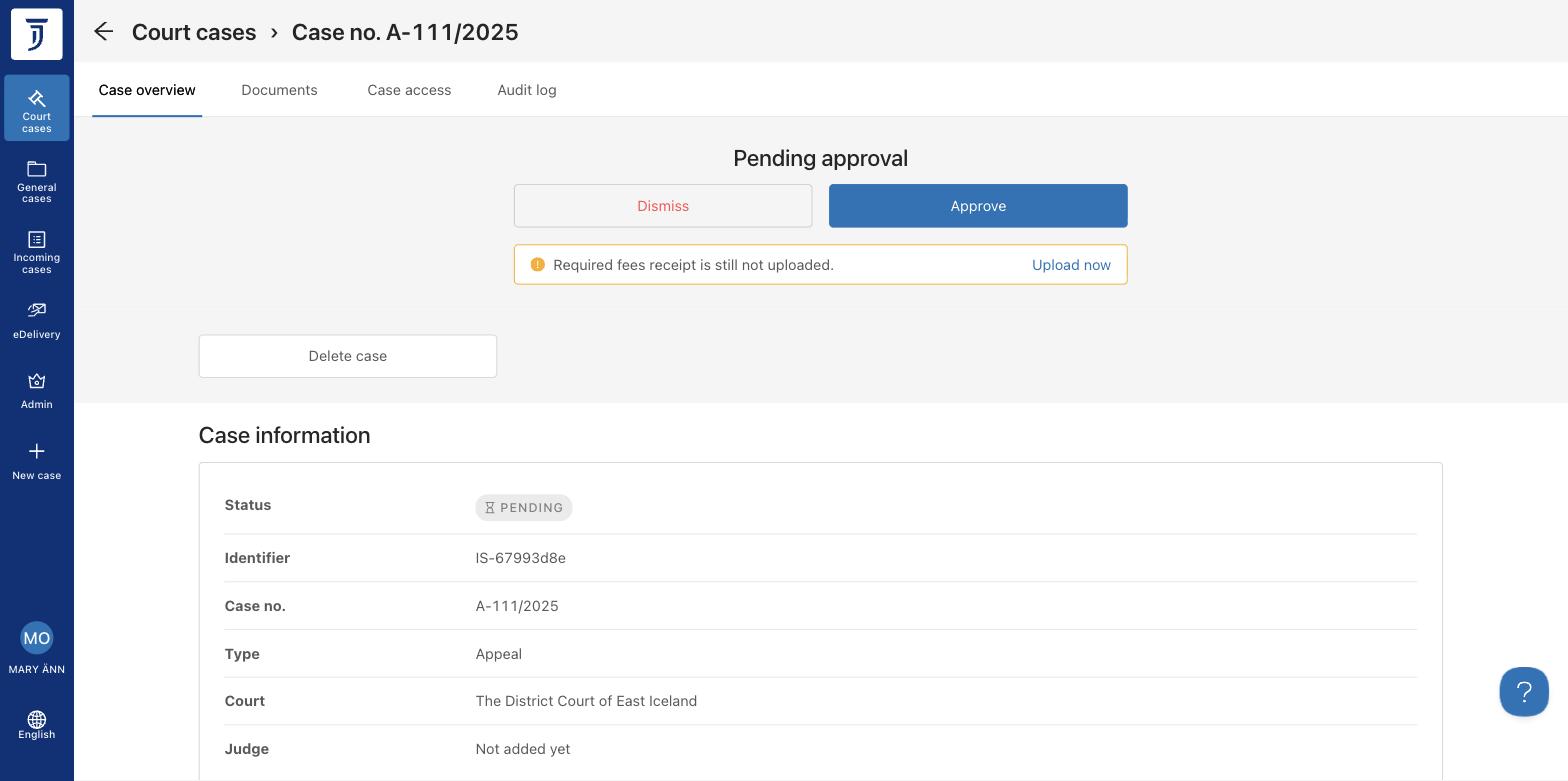
- The "Case information" section shows key details about the case: Status, Identifier, Case number, Type, Court, and Judge.
-
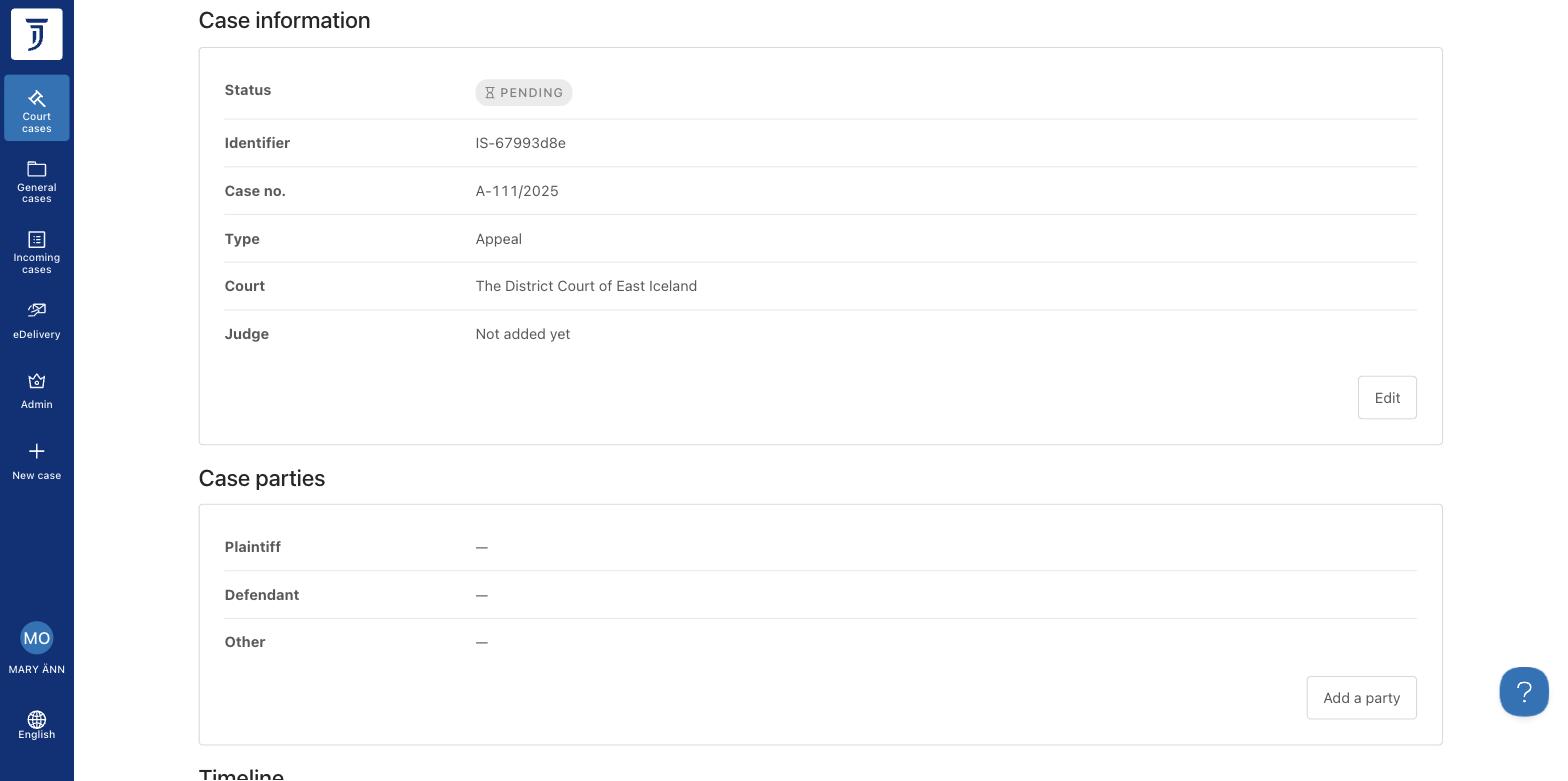
- Below the case information, you will find the "Case parties" section which lists all parties involved in the case, grouped by Plaintiff, Defendant, and Other. Users with write or admin access can add new parties using the "Add a party" button.
- The "Timeline" section at the bottom of the case overview shows the history of key events in the case, such as when the case was created, filed to court, or hearings were held. Users with submit access can suggest new timeline events, and case administrators or judges can confirm or add them directly.
-